๐Ÿ“„ Flagship Tool

Merge PDFs by discipline. Automatically.

Turn a folder of AutoCAD or Revit sheet exports into named discipline sets โ€” Architectural, Structural, Electrical, Mechanical, Plumbing, Fire Protection, Interior, and more โ€” in one click. Sheet numbers are detected automatically, Revit's coordinate offset is corrected so Bluebeam Batch Sign & Seal stamps land exactly where you expect, and an optional grand combined set is produced alongside the discipline files.

โœ“ Automatic discipline sorting using AEC sheet numbering conventions
โœ“ Revit coordinate correction for perfect Bluebeam stamp placement
โœ“ Optional grand combined set created alongside discipline files
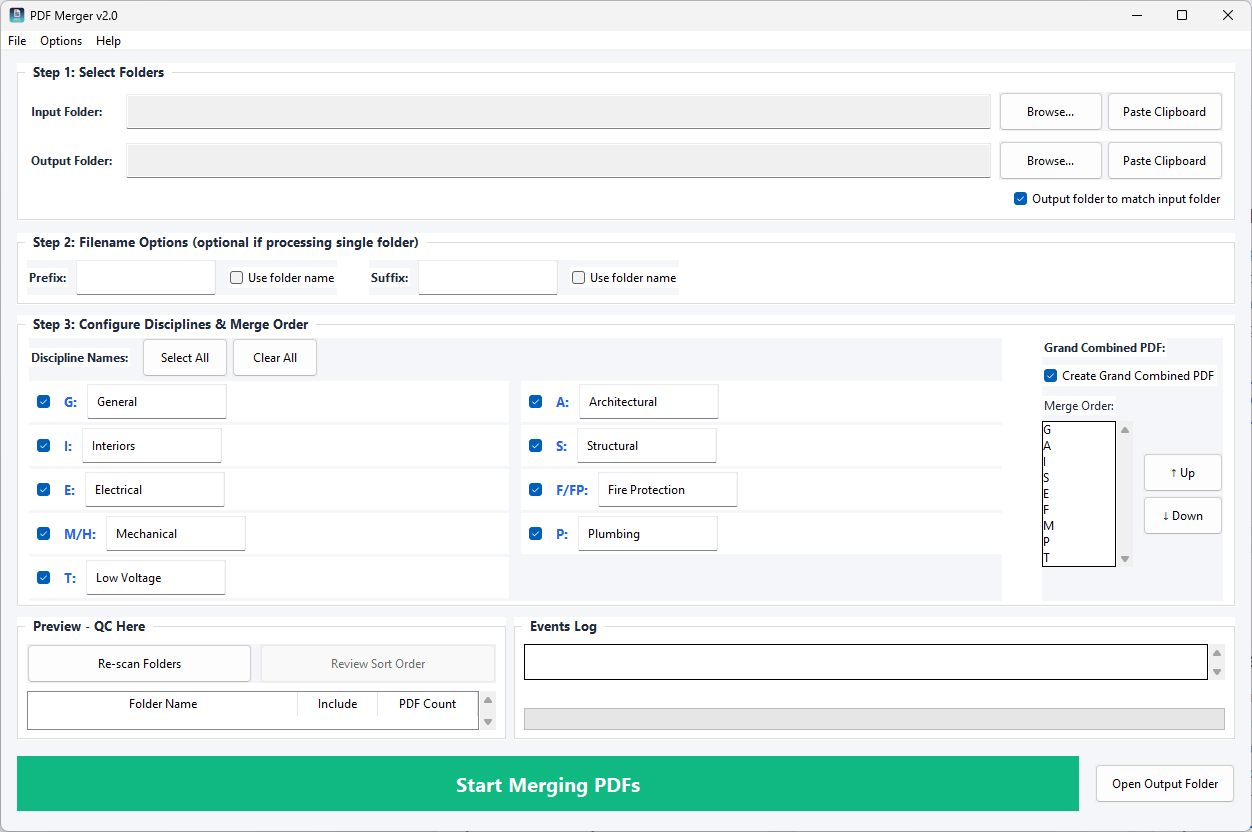
PDF Merger Interface

The Problem

Every permit submission requires the same painful process. You export individual sheets from Revit or AutoCAD, then manually sort them into Architectural, Structural, MEP discipline sets. With a 200-sheet set this takes hours and introduces sorting errors. And if Bluebeam Batch Seal is in your workflow โ€” which it is โ€” Revit's coordinate offset breaks stamp placement on every single sheet.

You've done this dance a dozen times. You know exactly how long it takes, and you know that somewhere in that manual sorting process, a sheet gets missed or put in the wrong discipline folder. Under deadline pressure, that's when mistakes happen.

PDF Merger eliminates this entirely. The tool reads the sheet number prefix automatically, understands AEC discipline conventions, and produces perfectly organized discipline sets in seconds. No manual sorting. No coordinate offset problems. Just discipline-named PDFs ready to submit.

How It Works

1

Export your sheets

Export sheets from Revit or AutoCAD as individual PDFs. No special naming convention changes required โ€” PDF Merger reads the sheet numbers automatically from your existing export structure.

2

Drop the folder in

Point PDF Merger at your export folder. It identifies each sheet's discipline from the sheet number prefix and sorts them into groups automatically. A-series sheets become Architectural, S-series become Structural, E becomes Electrical, M becomes Mechanical, and so on.

3

Click "Start Merging"

Discipline-named PDF sets appear in your output folder, each correctly ordered by sheet number. An optional grand combined set is created at the same time. Coordinate origins are corrected automatically if you're using Revit exports.

Key Features

๐Ÿ“Š

Automatic Discipline Detection

Recognizes all standard AEC sheet numbering conventions โ€” A, S, E, M, P, FP, I, C, L, and more. Discipline categories are created and populated automatically.

๐Ÿ“

Revit Coordinate Correction

Detects and corrects Revit's centered coordinate origin, making PDF coordinate geometry standard-compliant. Bluebeam Batch Seal stamps land exactly where you defined them.

๐Ÿ—‚๏ธ

Grand Combined Set

Optionally create a combined set alongside discipline files โ€” perfect for reference copies, archiving, or clients who want a complete bound set.

๐Ÿ”ข

Smart Sheet Ordering

Sheets are ordered correctly within each discipline set, not alphabetically. E2.1 comes before E2.11, and discipline cover sheets appear first.

โšก

Mixed Exports

Handles folders containing both Revit and AutoCAD exports in the same operation. Sorts by discipline regardless of source.

๐Ÿ“‹

Clear Logging

See exactly what the tool did โ€” which sheets were found, how they were sorted, which discipline each belongs to, and where files were written.

Ready to stop sorting PDFs manually?

Try PDF Merger free for 30 days. No credit card required.

Start Free Trial